App Guide
How to Use The Full Truck
A complete walkthrough of every feature — from uploading your first invoice to reading your end-of-year P&L. Jump to any section using the navigation.
Dashboard
The dashboard gives you a quick overview of your entire business at a glance. You can see your total catalogs or invoices, products, customers, pending orders, monthly earnings, and outstanding balance.
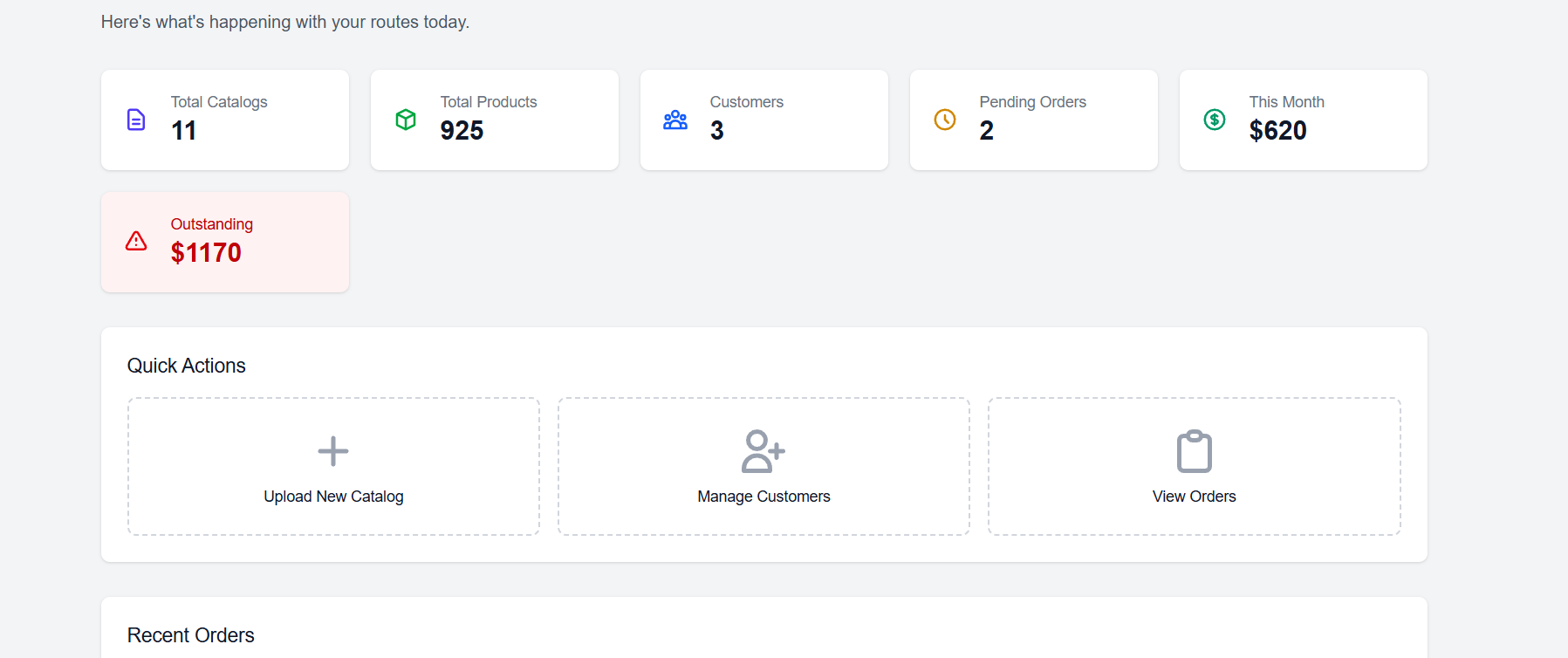
From the dashboard you can upload a new catalog or invoice, add customers, or jump straight to your recent orders.
Catalogs
Catalogs are your digital product lists — one per distributor invoice. Upload a PDF or photo of any invoice and the app will automatically extract all the products.
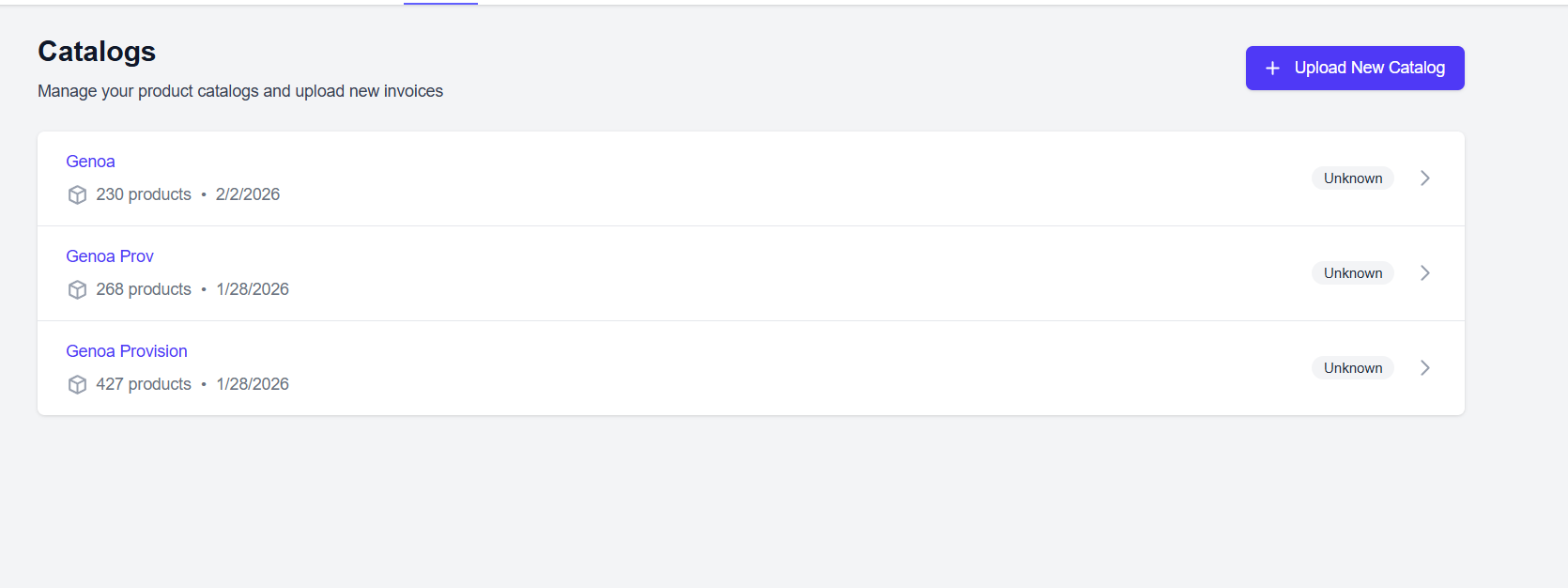
When you click a product catalog it will take you to the full digital product list.
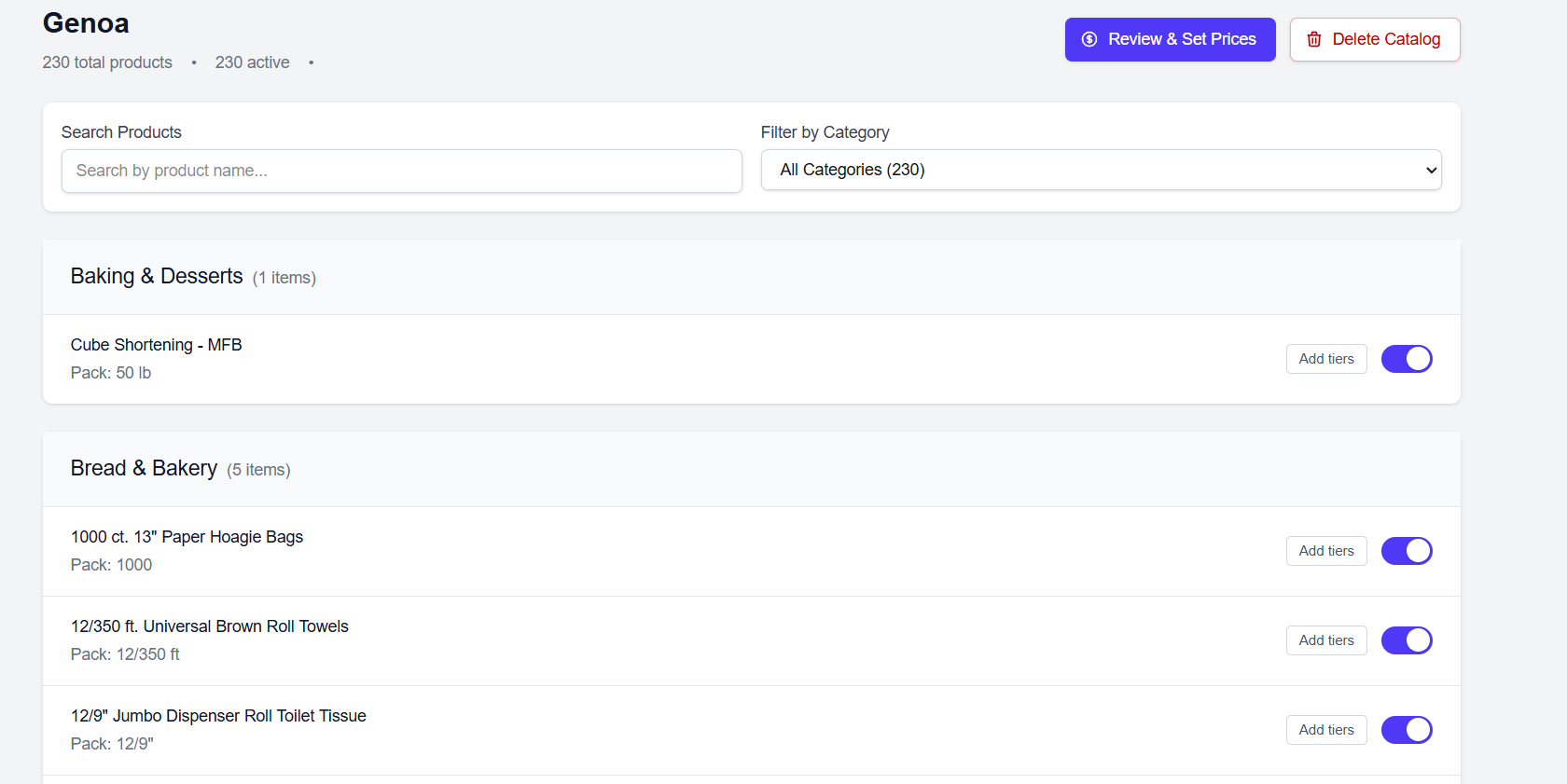
- Toggle products on or off so customers only see what you currently carry.
- Add tiered pricing — for example, a lower price per case when a customer buys five or more.
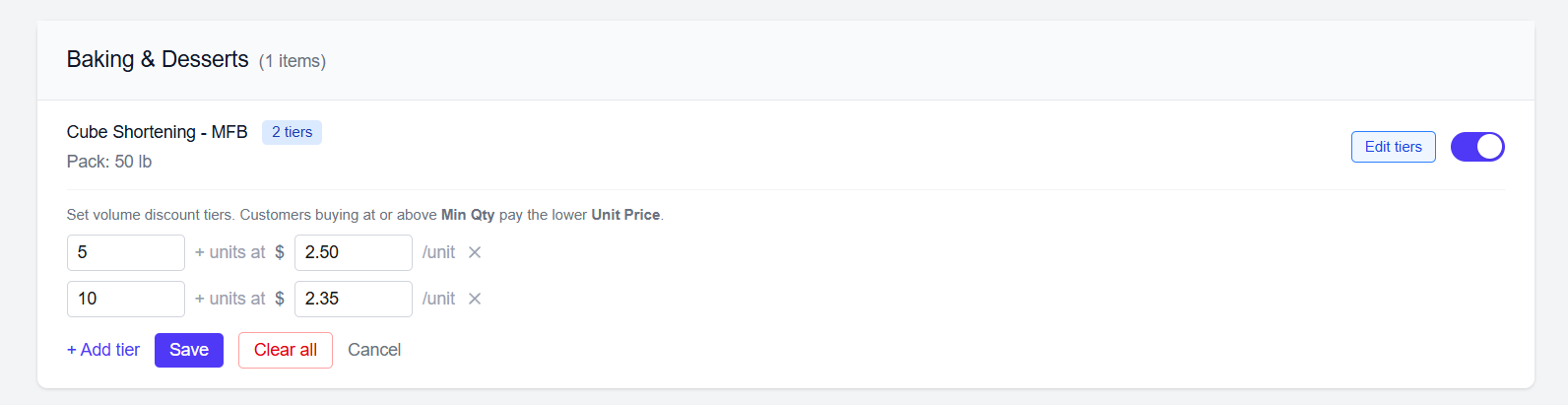
- Review and set sell prices manually if you want.
- Apply a global markup percentage across all products, or set individual markups per product.
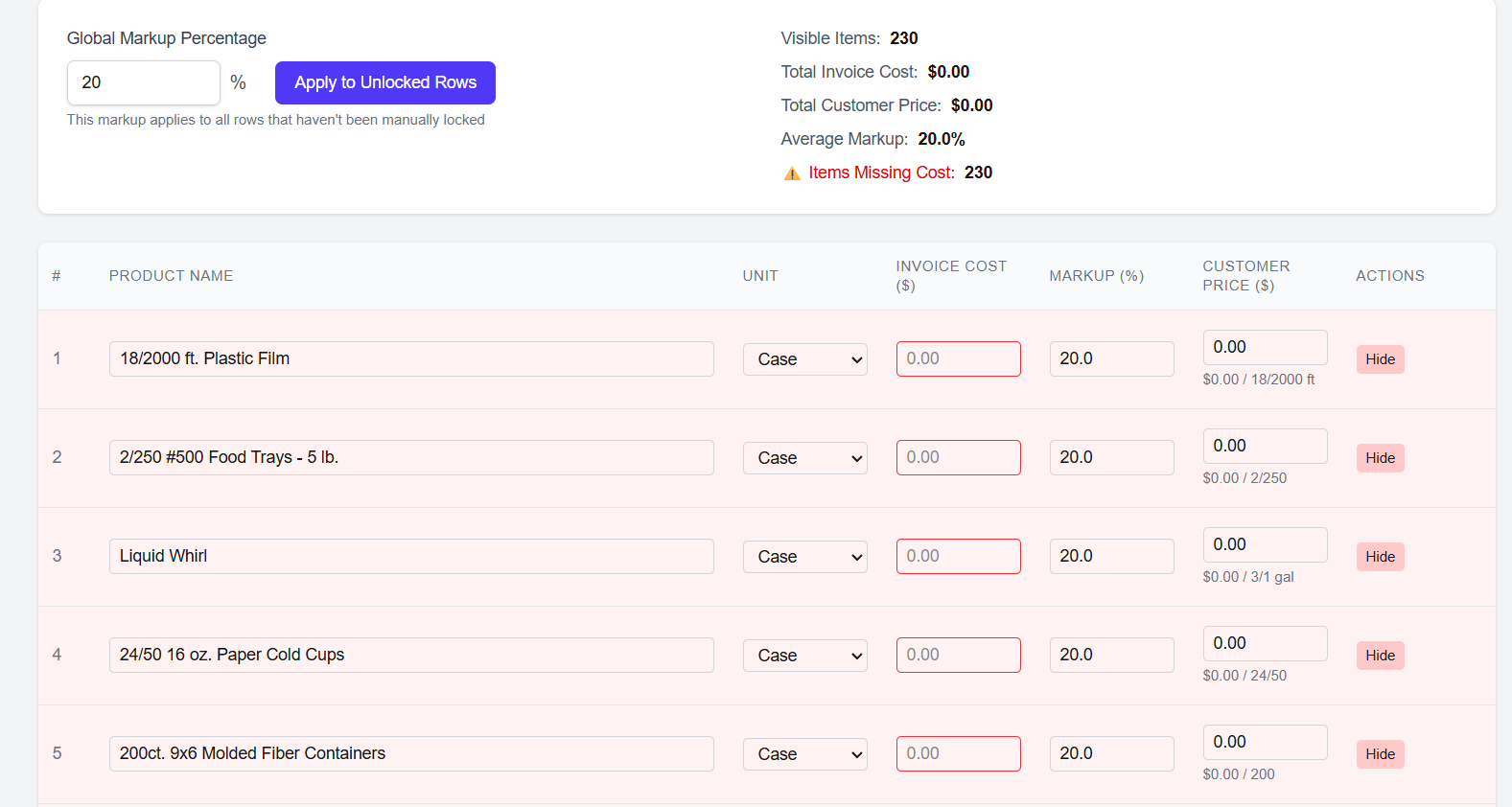
Most drivers don't include pricing on the customer order page and simply add the total at delivery — that works too. Pricing is completely optional.
Customers
The initial screen shows a list of all your current customers.
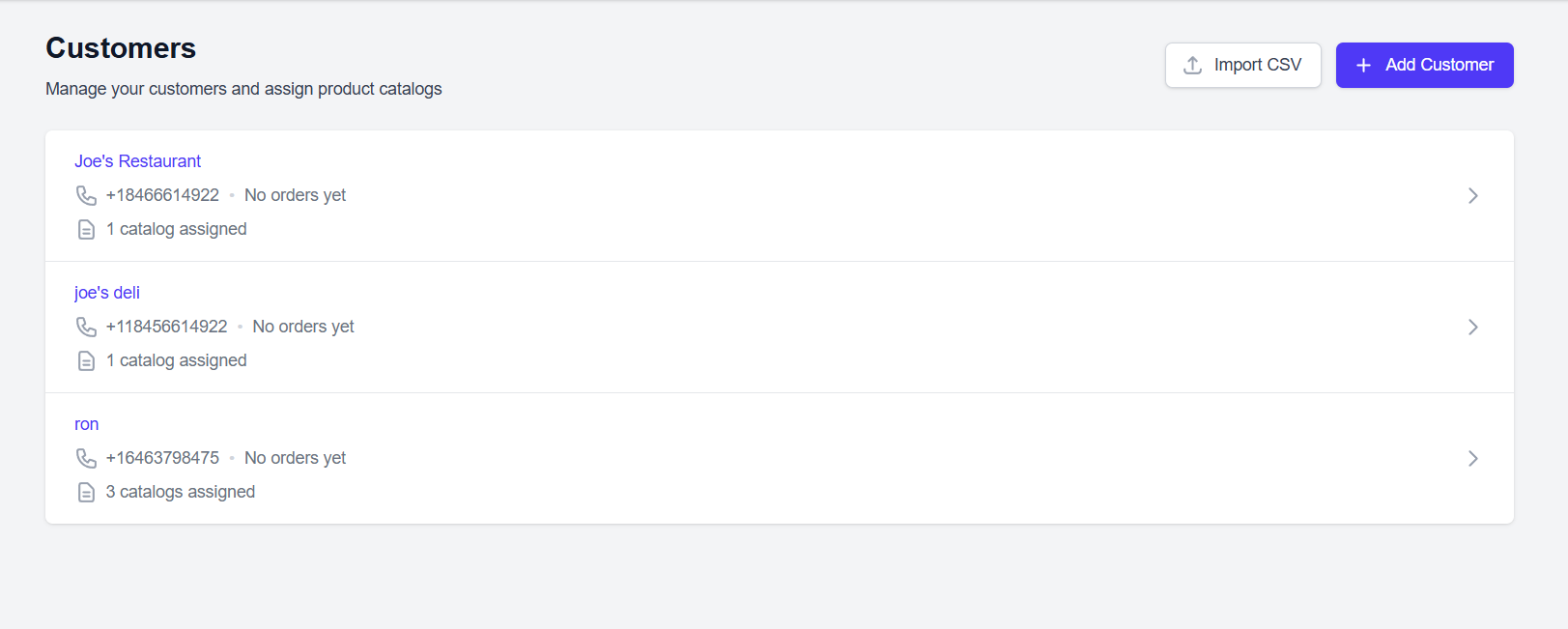
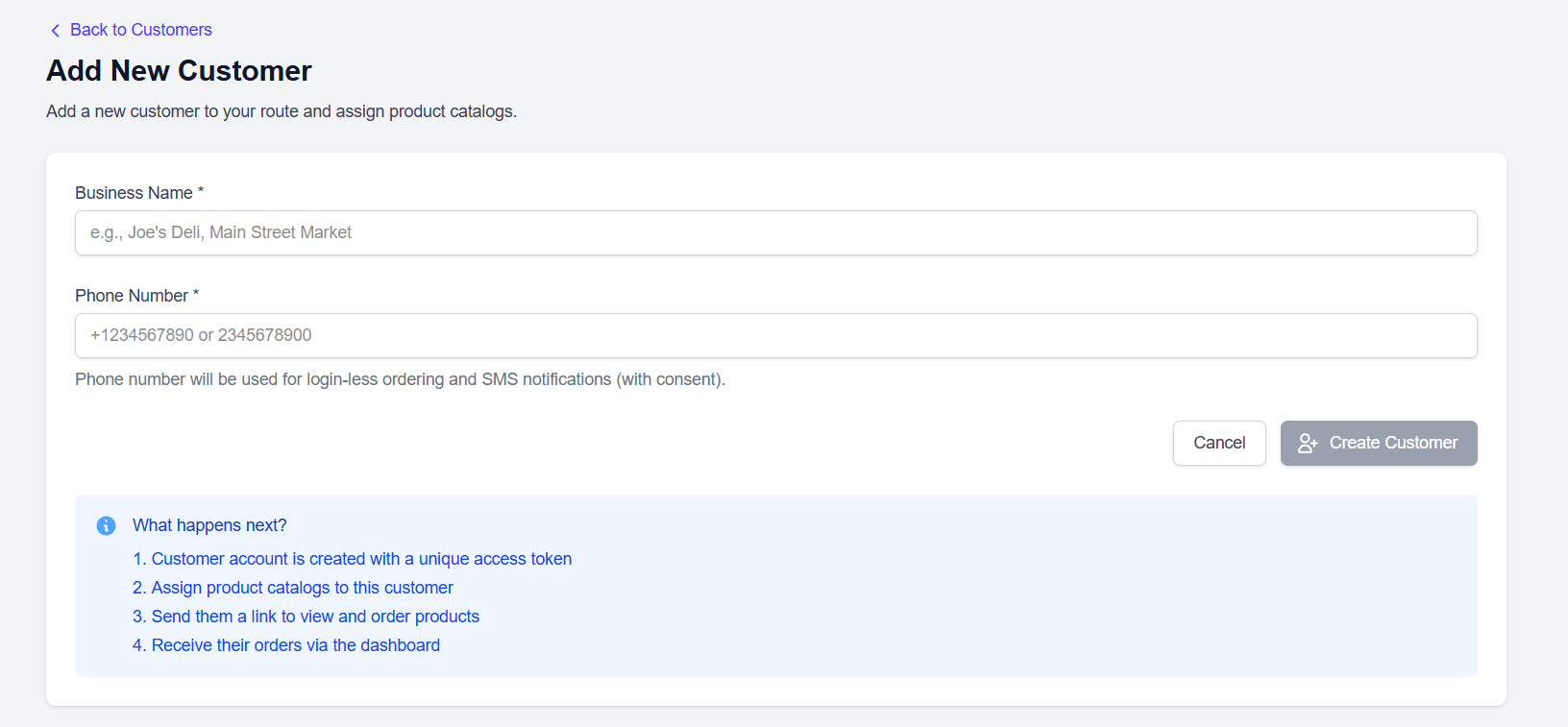
Easily add new customers with their phone number to allow text-message ordering.
When you click a customer it will take you to their dedicated page.
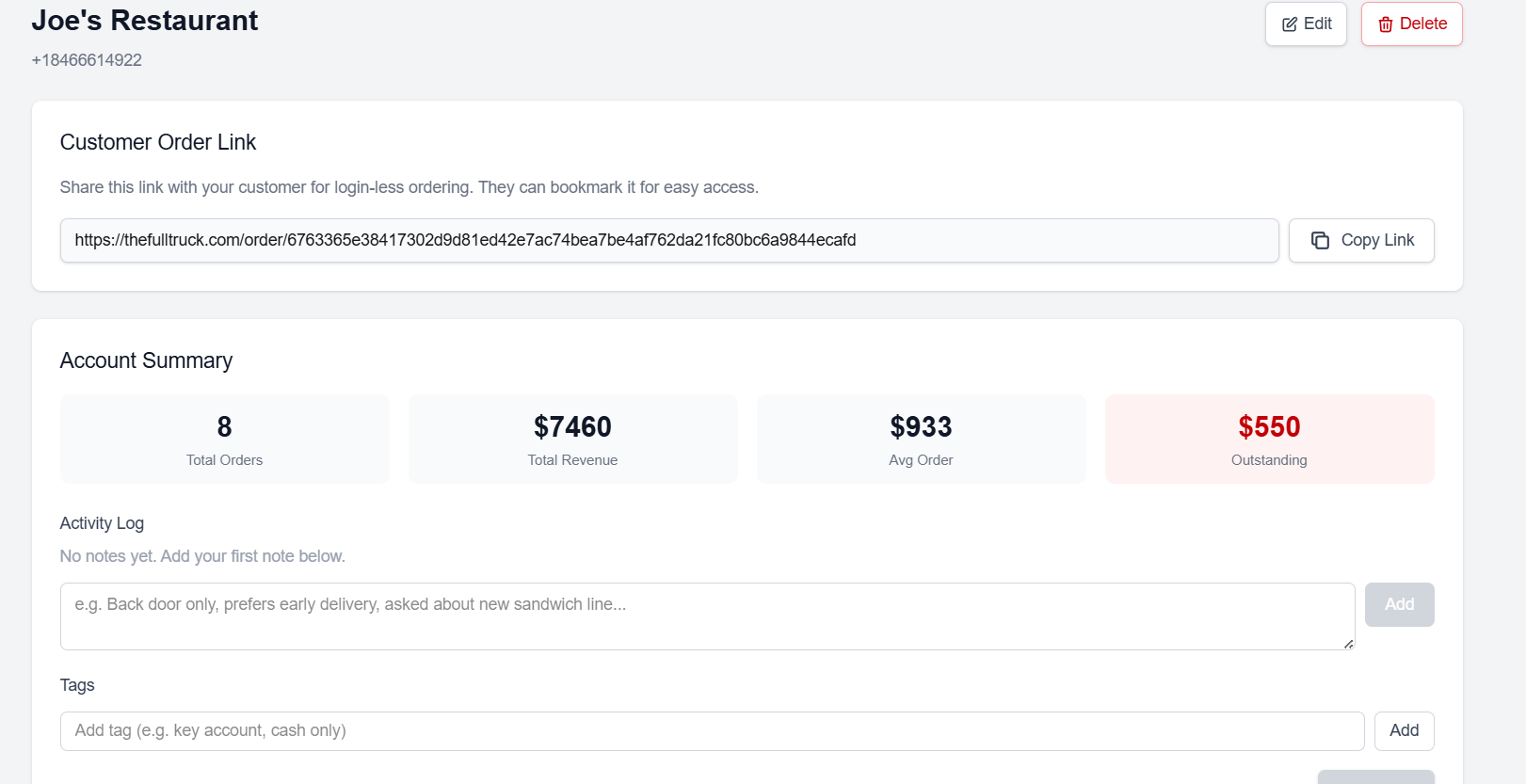
- The customer order link is the unique link that gets texted to the customer — this is what allows them to place orders without needing an account.
- See your total account history with that customer: total orders, total revenue, average order value, and outstanding balance.
- Add notes for yourself or for a driver who covers your route.
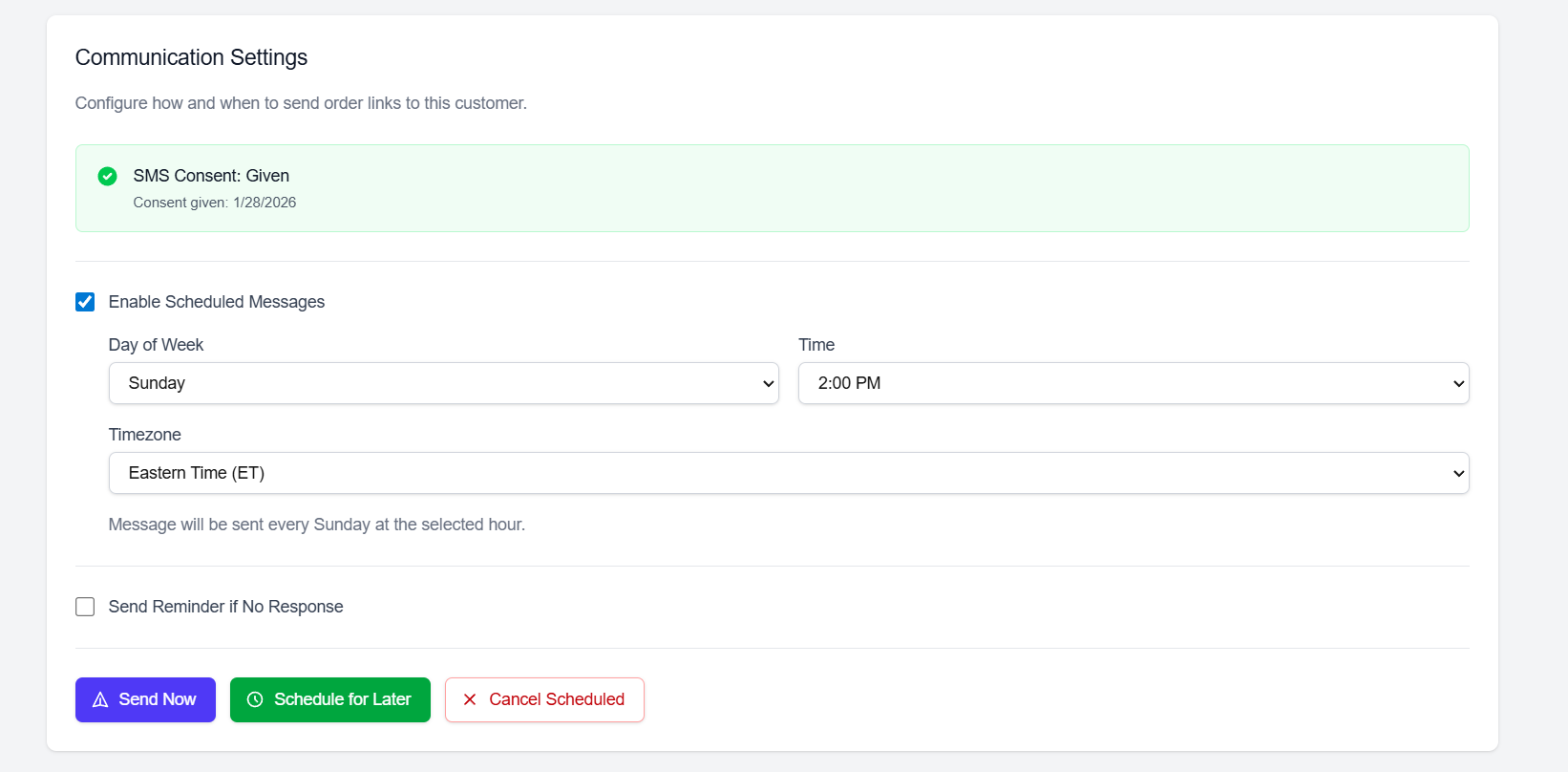
Collect SMS consent from the customer, then send a one-time message or enable scheduled messages. You can also set up an automatic follow-up message if they don't click the order link.
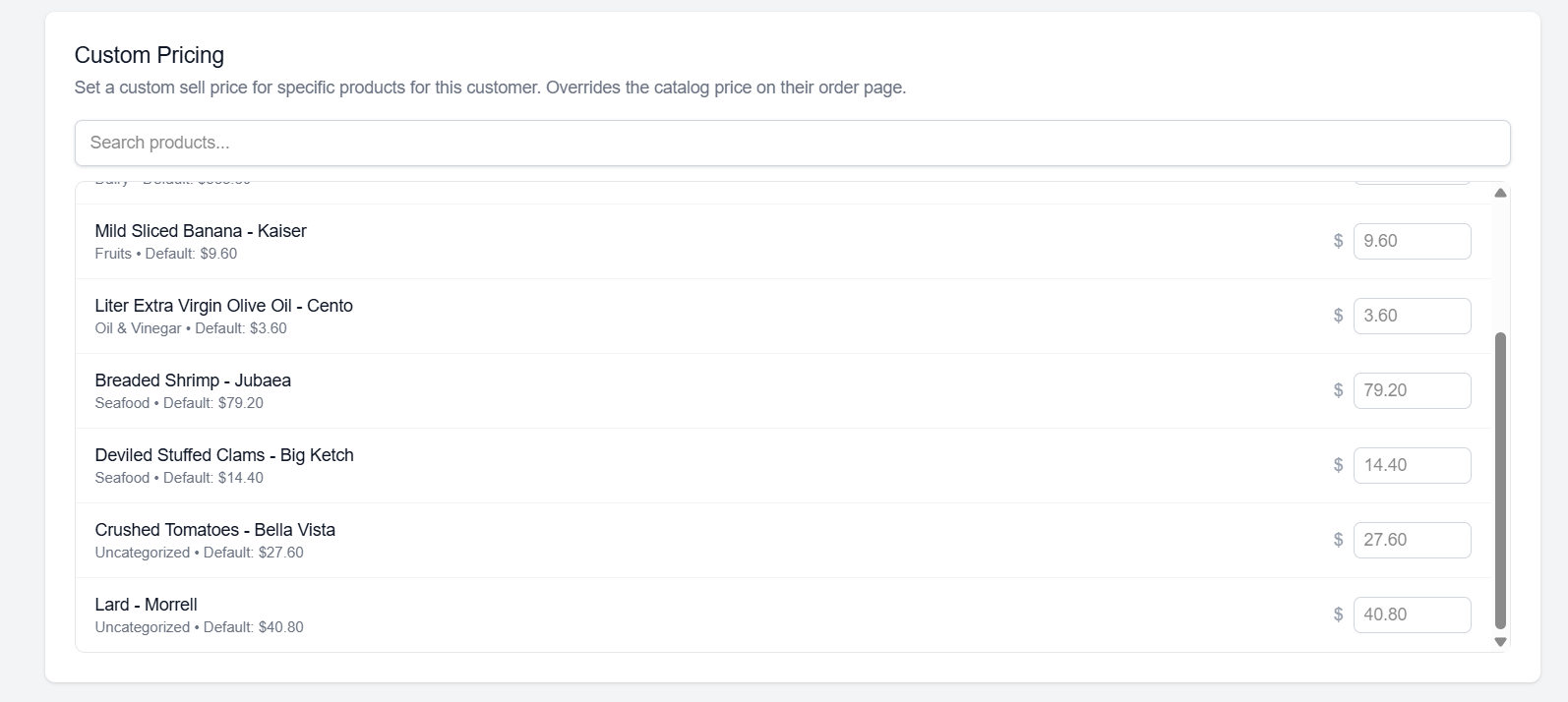
If prices are set on the product catalog, you can override them here on a per-customer basis — useful for key accounts that get special pricing.
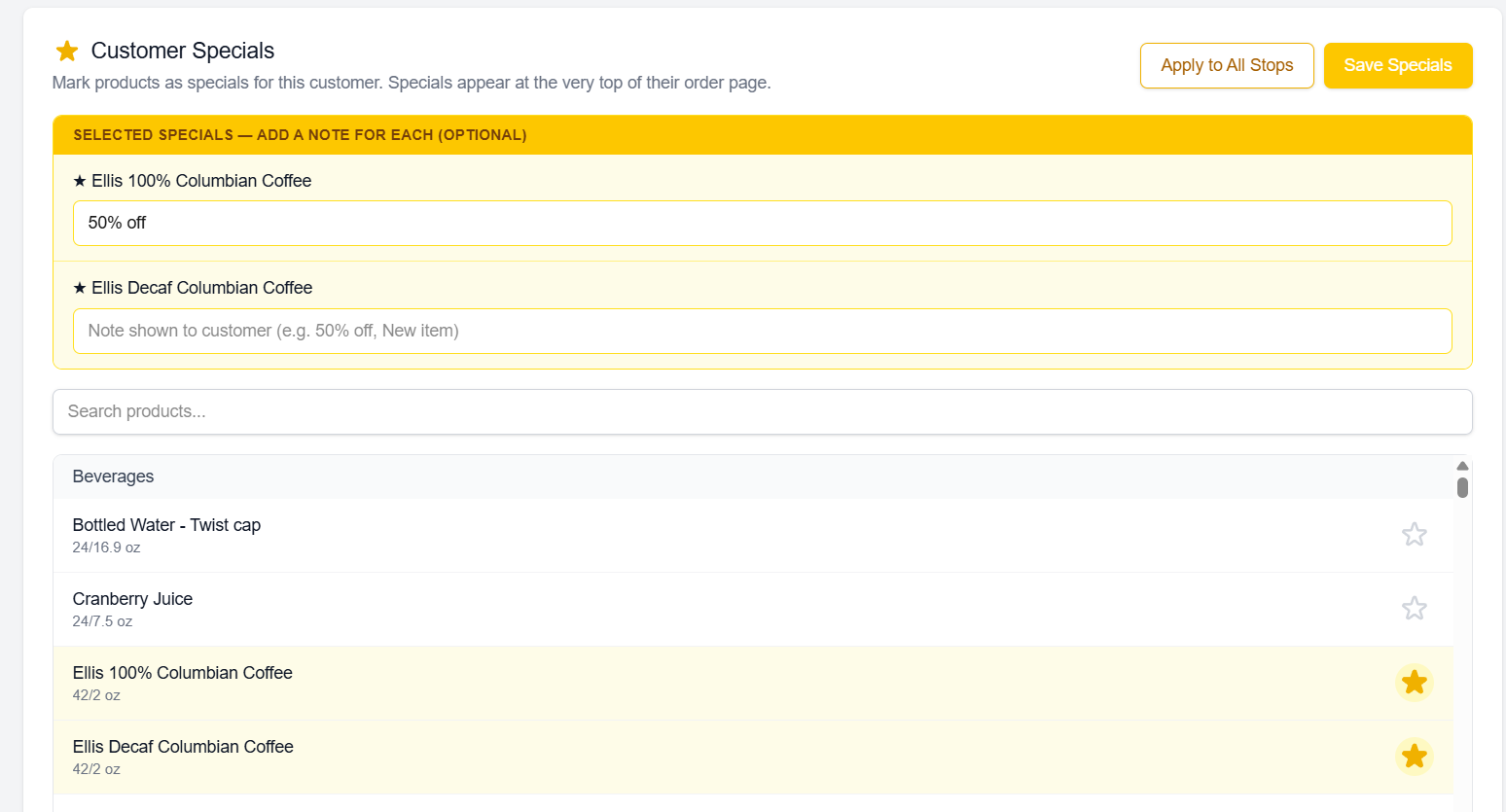
Create customer specials by clicking the star on the right side of any product. You can leave a note for each special — for example, "50% off this week" or "New item." Use "Apply to All Stops" to push the current specials to every customer at once.
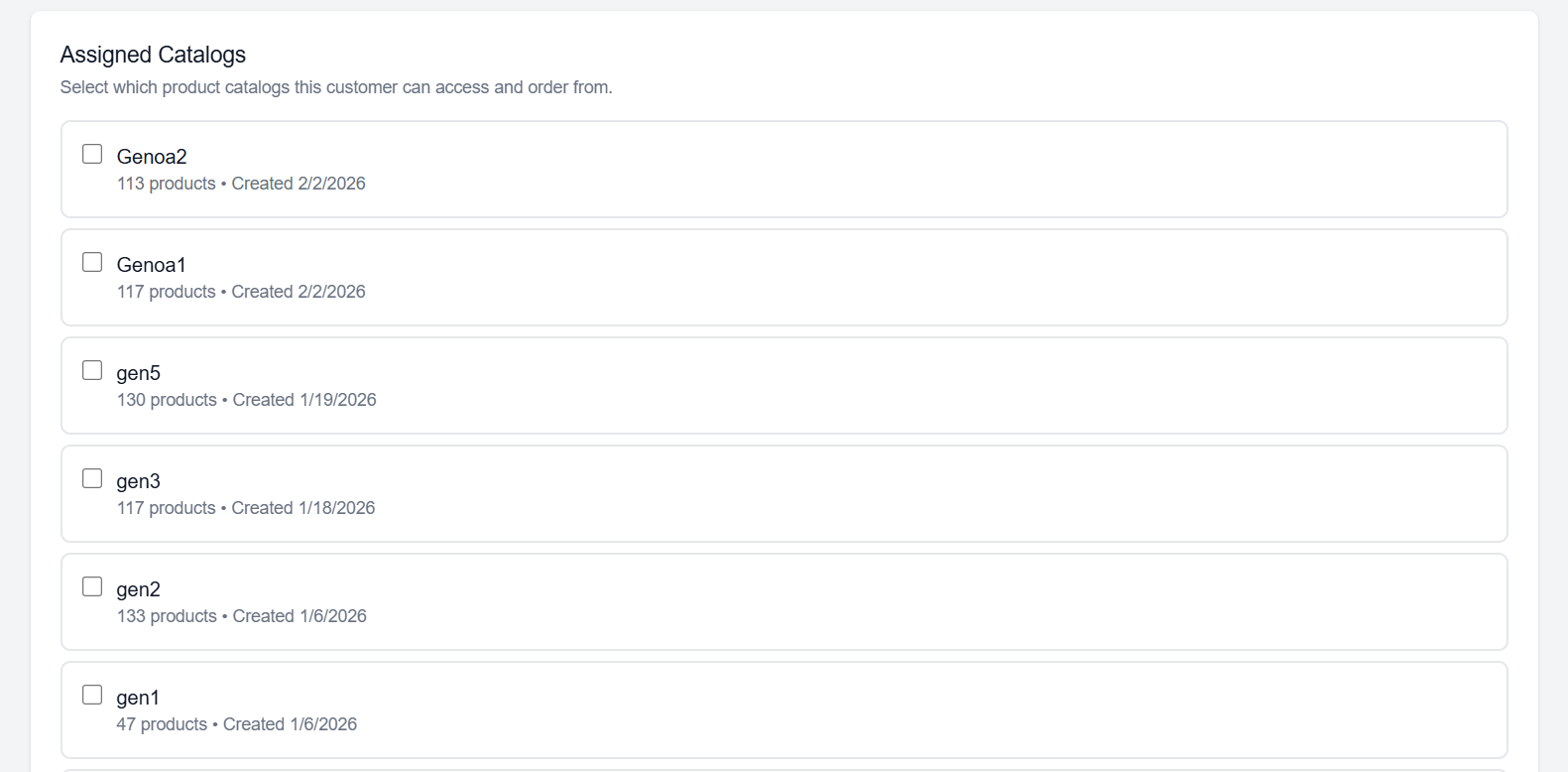
Assign one or more of your distributor product catalogs to each customer. If you work with multiple distributors but want a specific customer to only see products from one of them, simply check or uncheck the boxes here.
Orders
View all orders or filter to see only pending orders here.
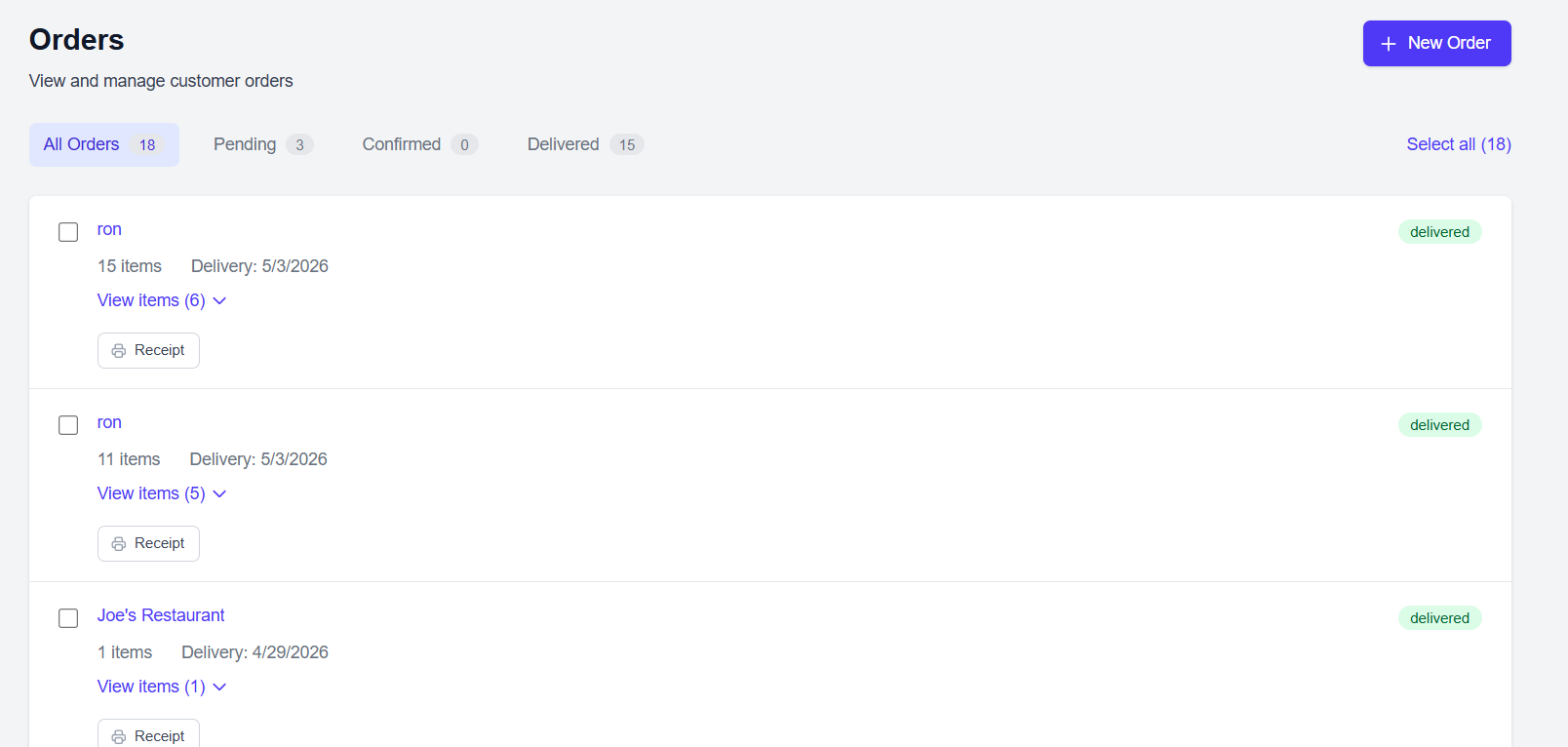
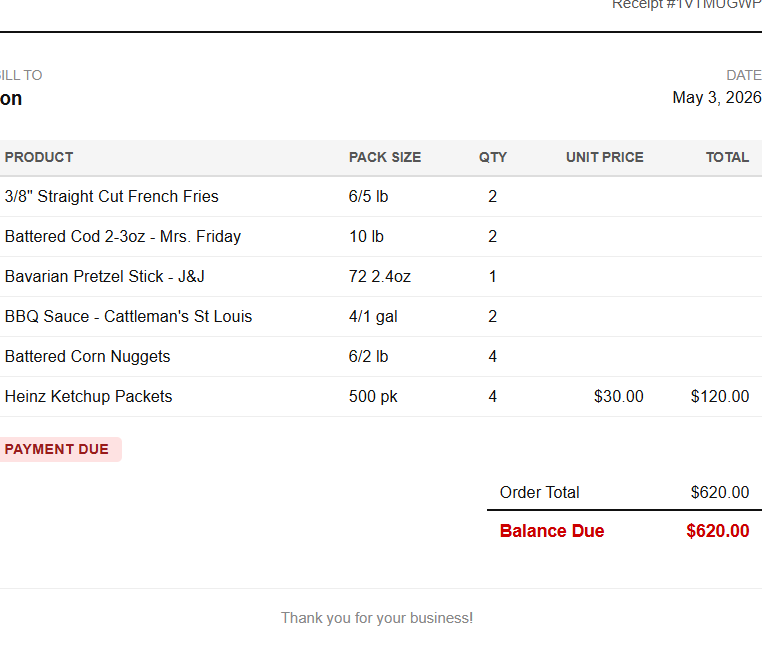
Print receipts directly from any order.
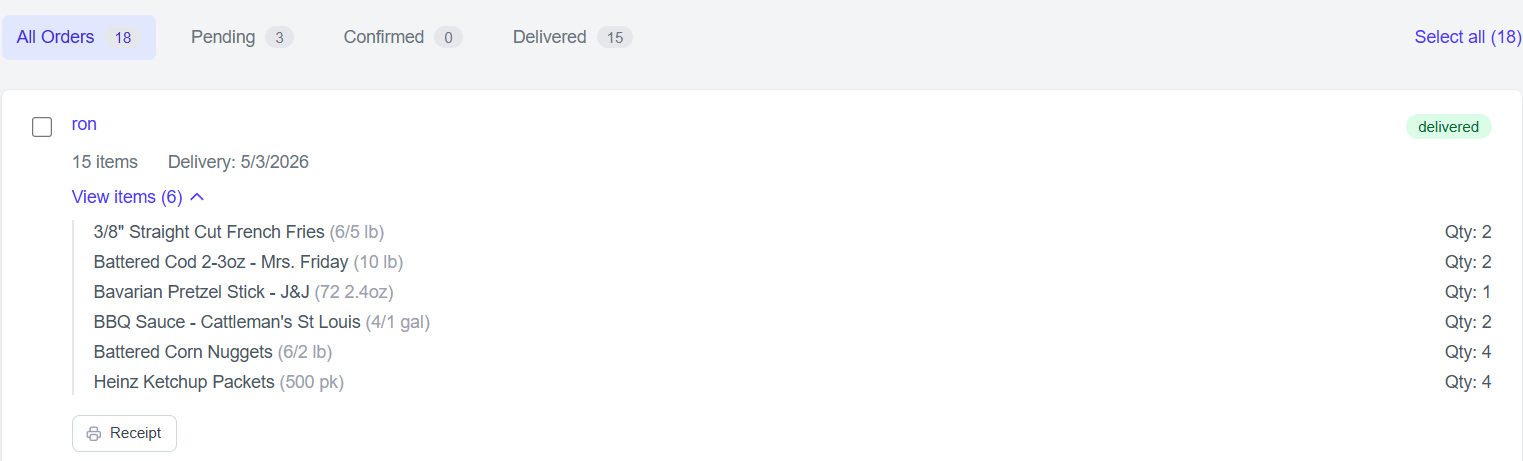
Quickly view the full item list for each delivery.
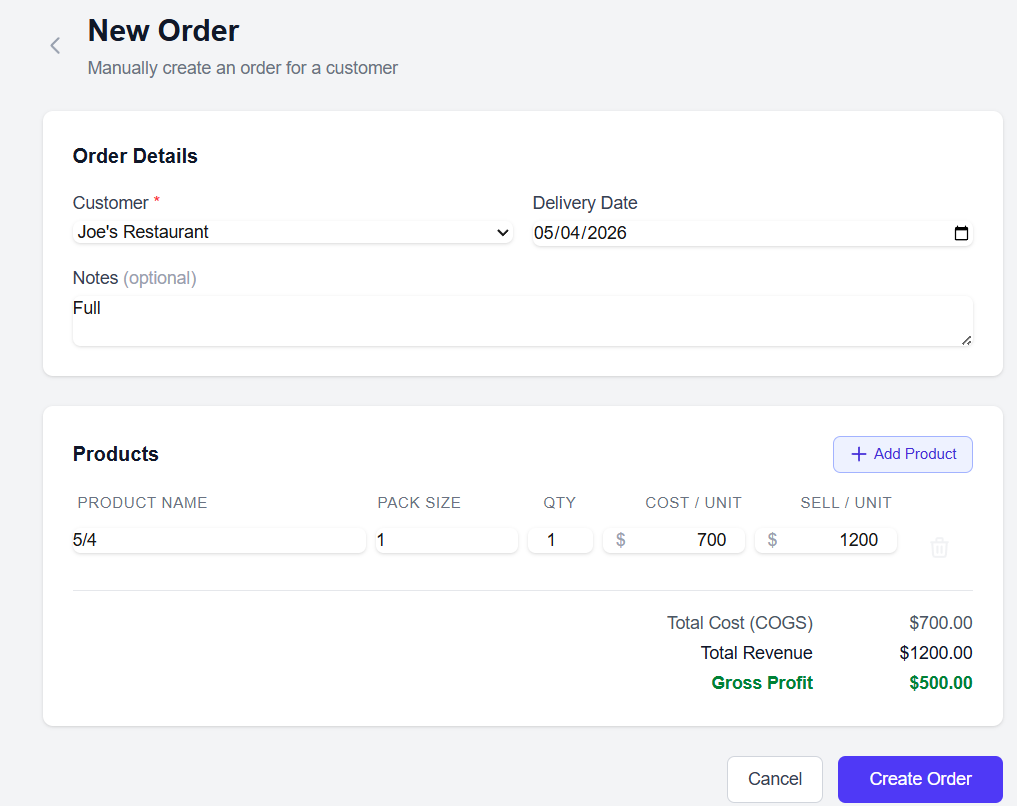
For drivers who don't use digital invoices and only want the accounting side: you can manually create a new order from the Orders page and enter the total sale price and cost of goods for accounting purposes.
Order History
See a customer's complete order history here.
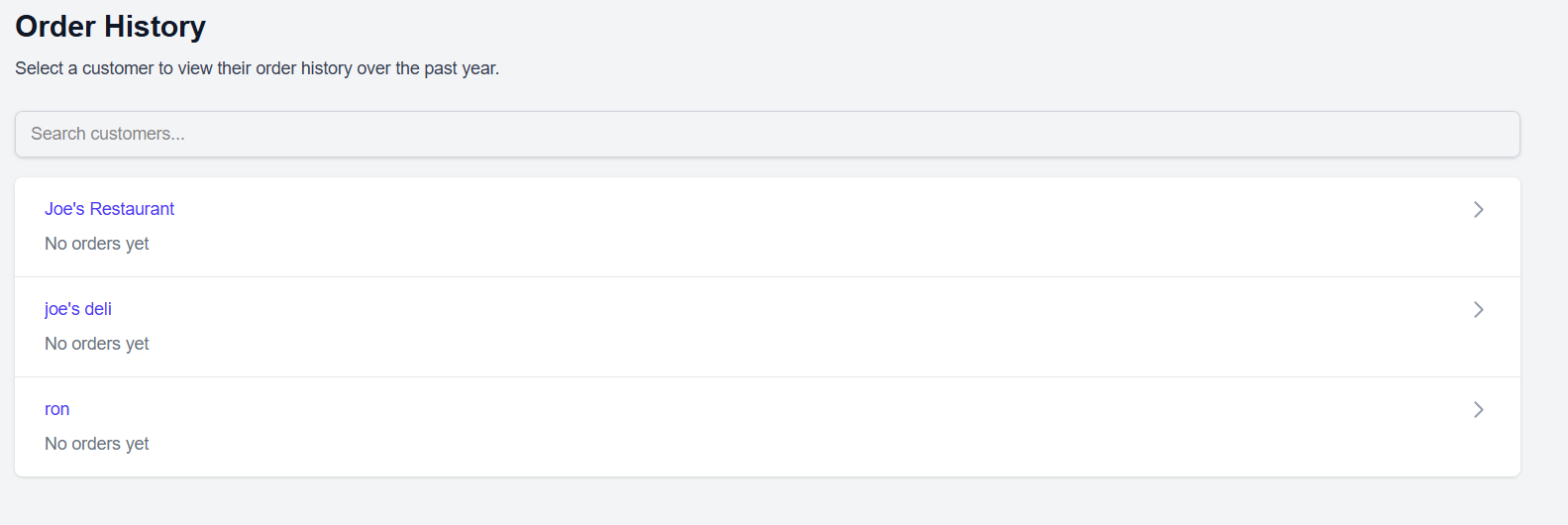
View the account balance, record partial payments, or mark an order as fully paid. The date when the customer paid in full is recorded automatically.

If you're on a basic plan without digital invoicing, this is also where you enter the total order amount and cost of goods for each delivery so your profit calculations stay accurate.
Reports
Reports is the full accounting side of the app. Everything you need to understand how your business is actually performing.
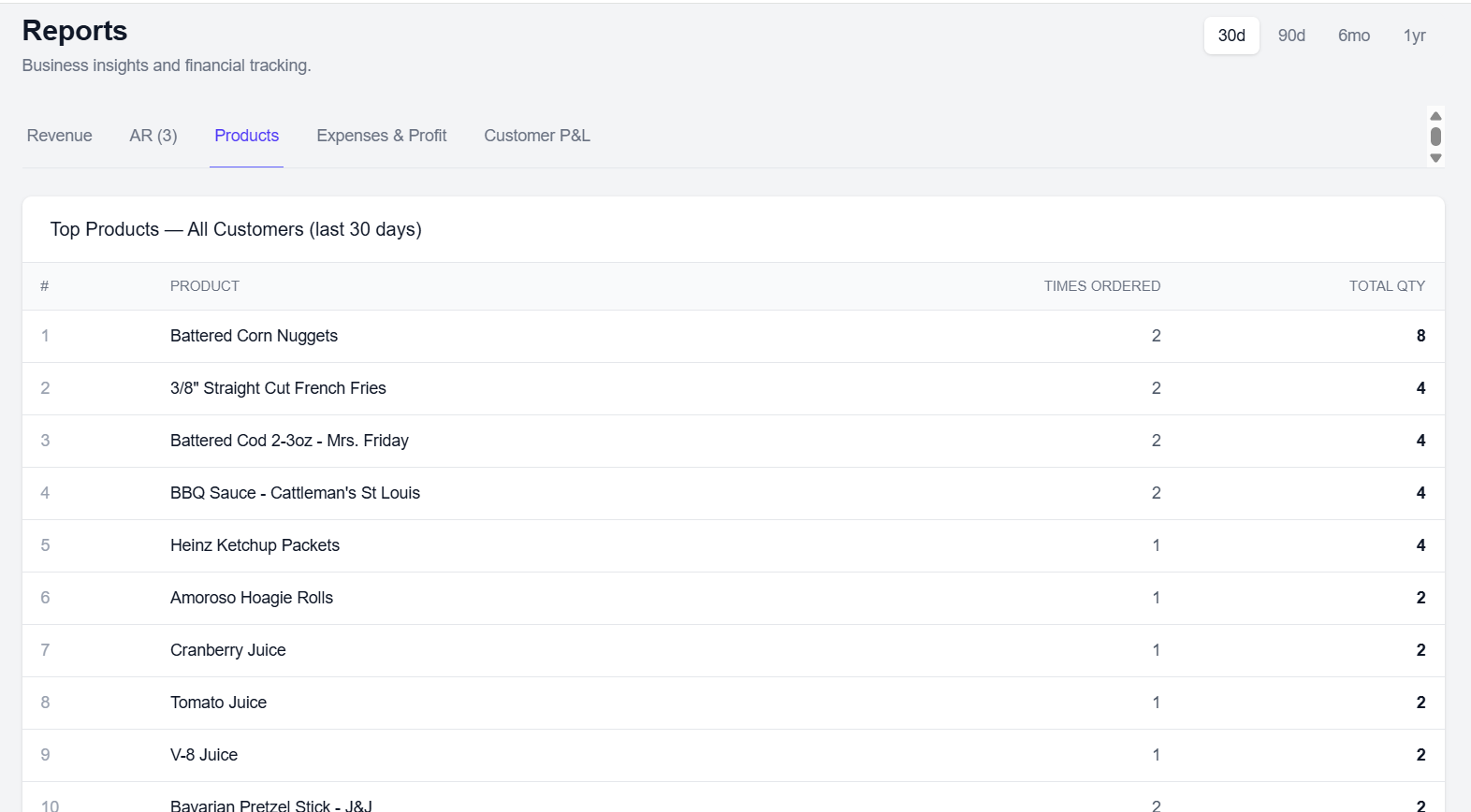
- See revenue for the past 30 days, 90 days, 6 months, and full year.
- Revenue and average order broken down by customer.
- Weekly revenue chart.
- One-click sync to QuickBooks.
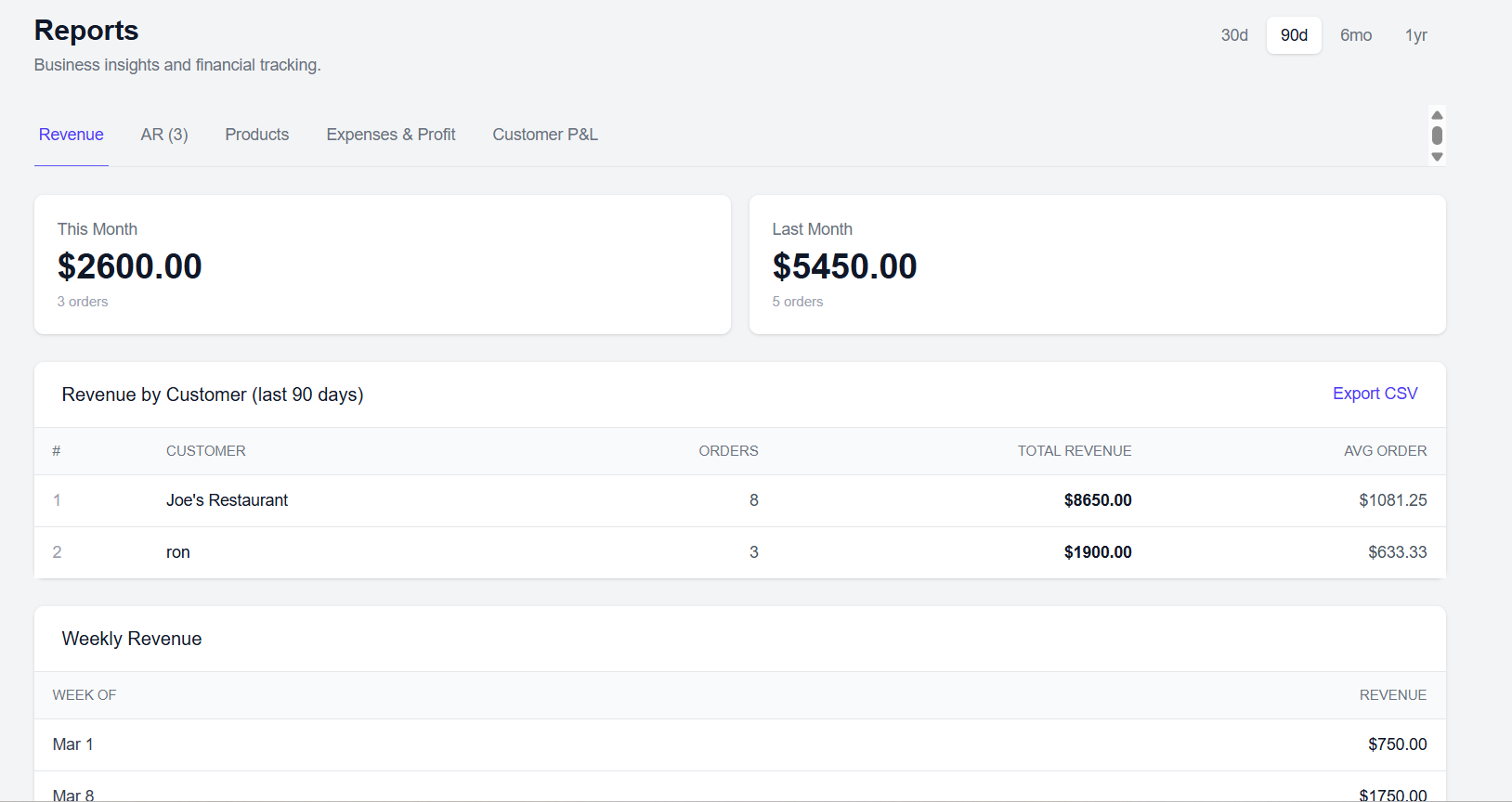
See accounts receivable — who still owes you money — broken down by the same time periods.
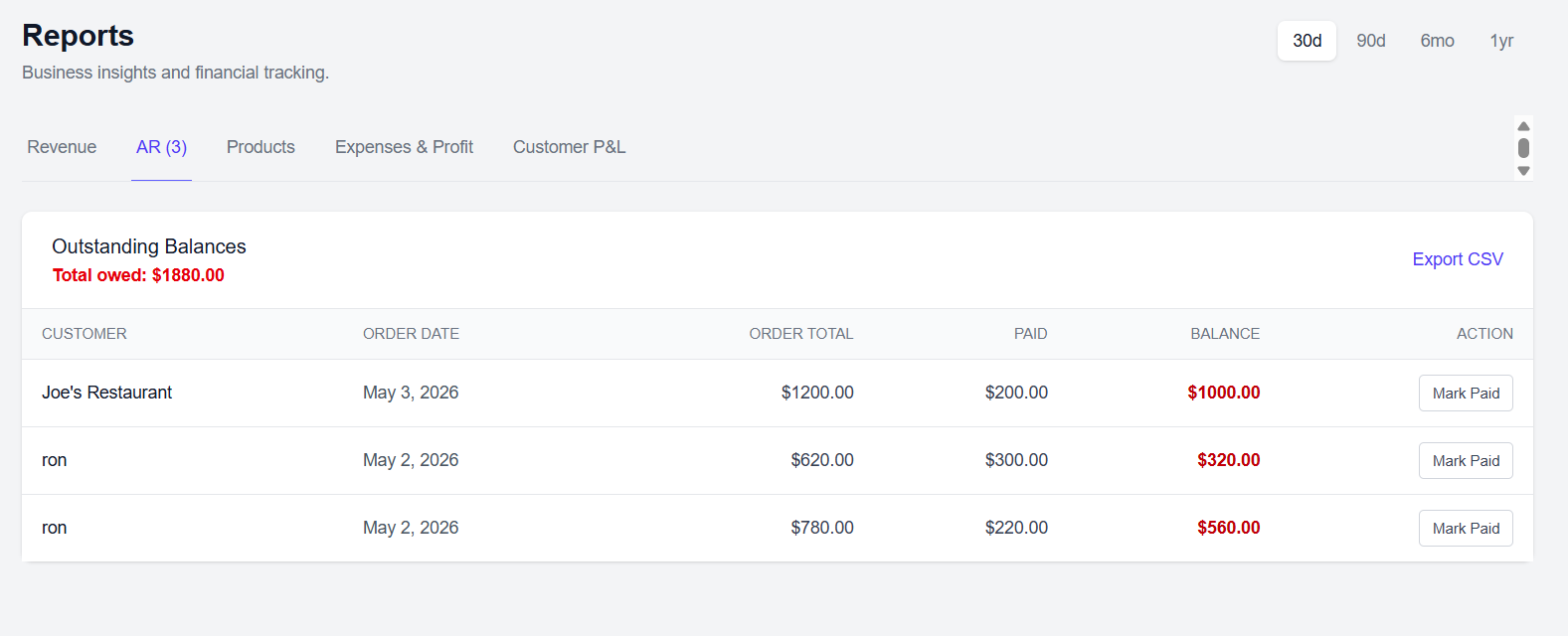
View your top-selling products over the past 30 days, 90 days, 6 months, and year.
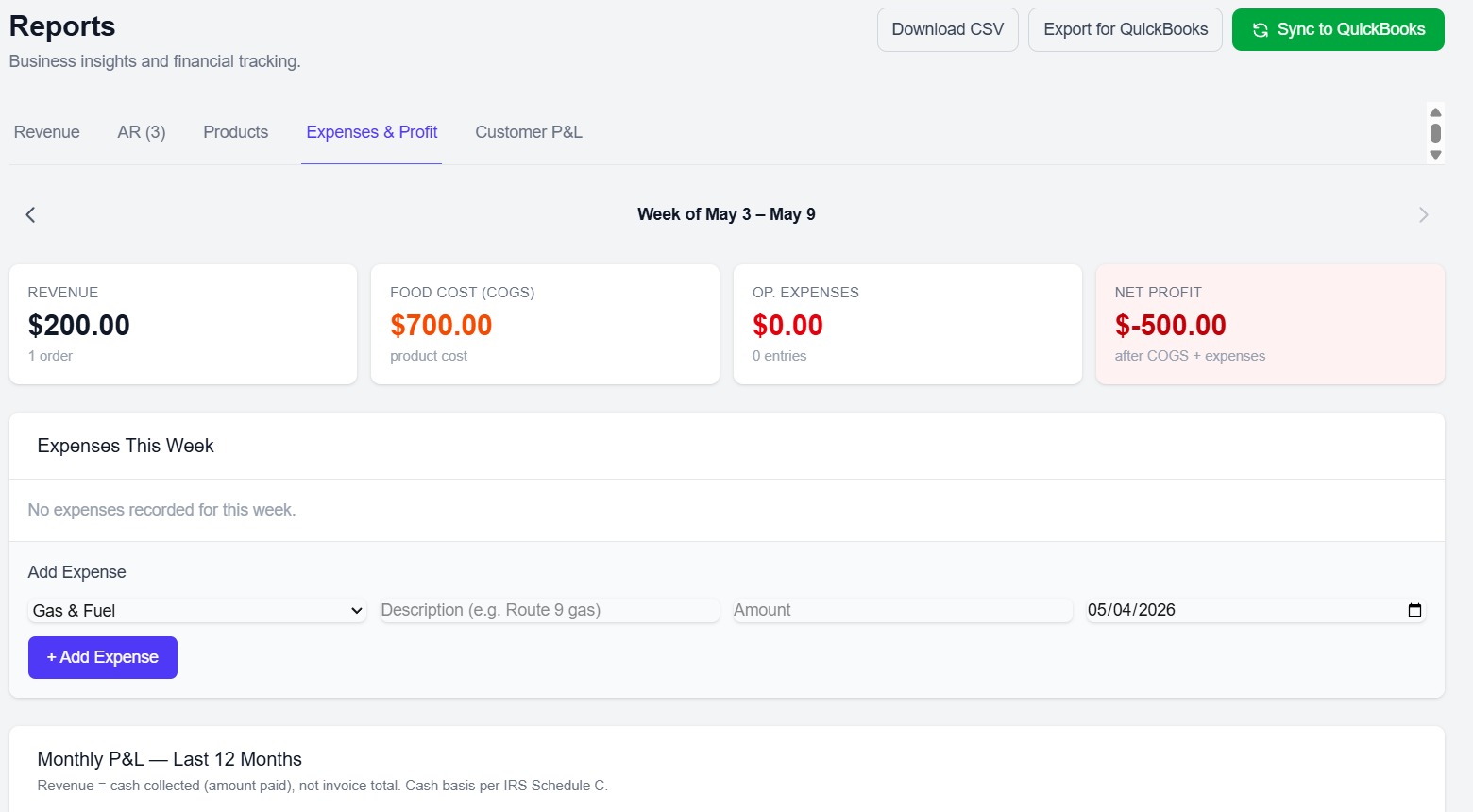
The profit view shows expenses alongside revenue so you can see your real numbers:
- Weekly revenue, food cost, operating expenses, and net profit.
- Quickly log a new expense from this screen.
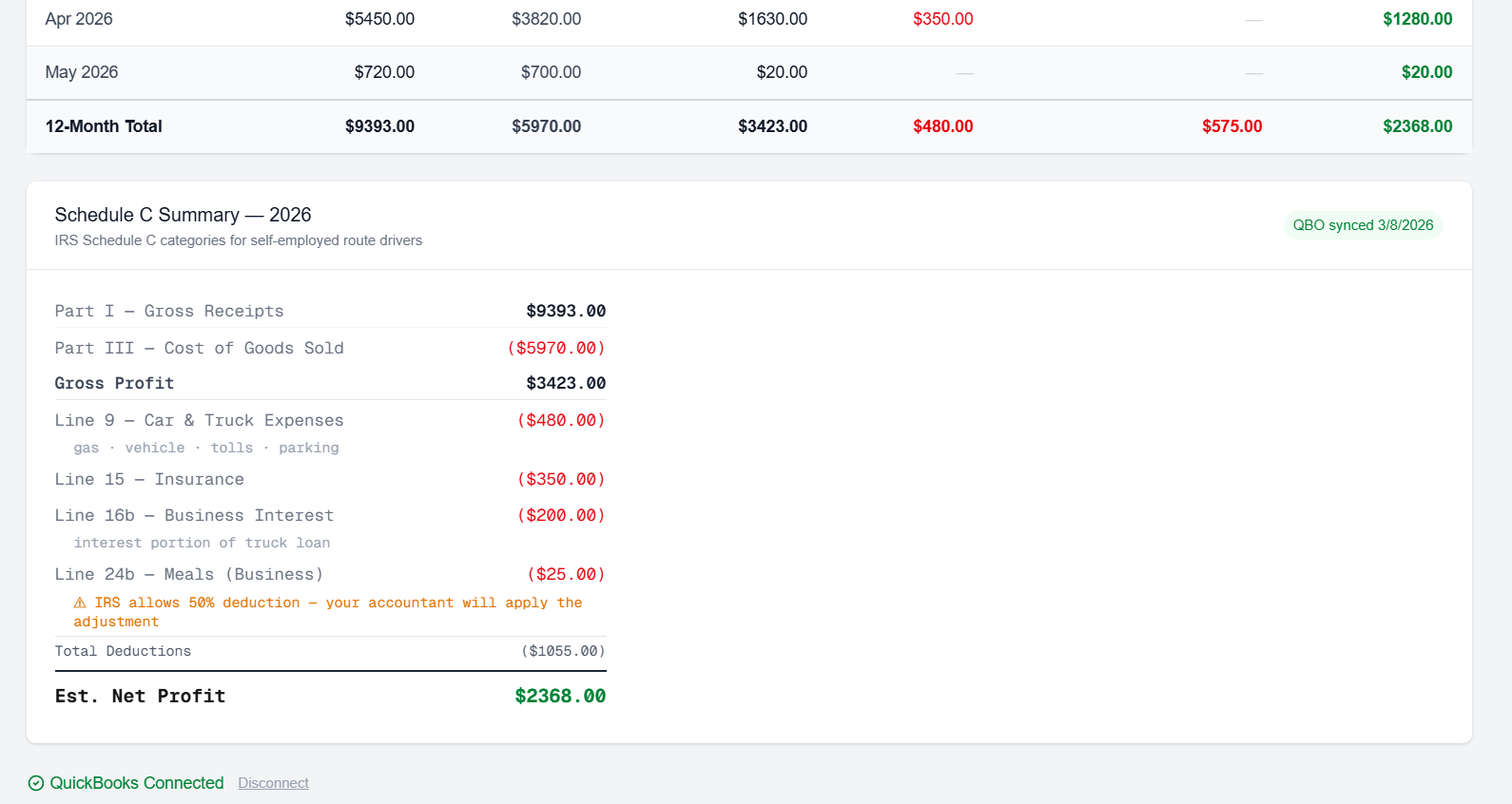
- Monthly totals at a glance.
- Schedule C summary — expenses already organized by IRS line number so tax time is simple.
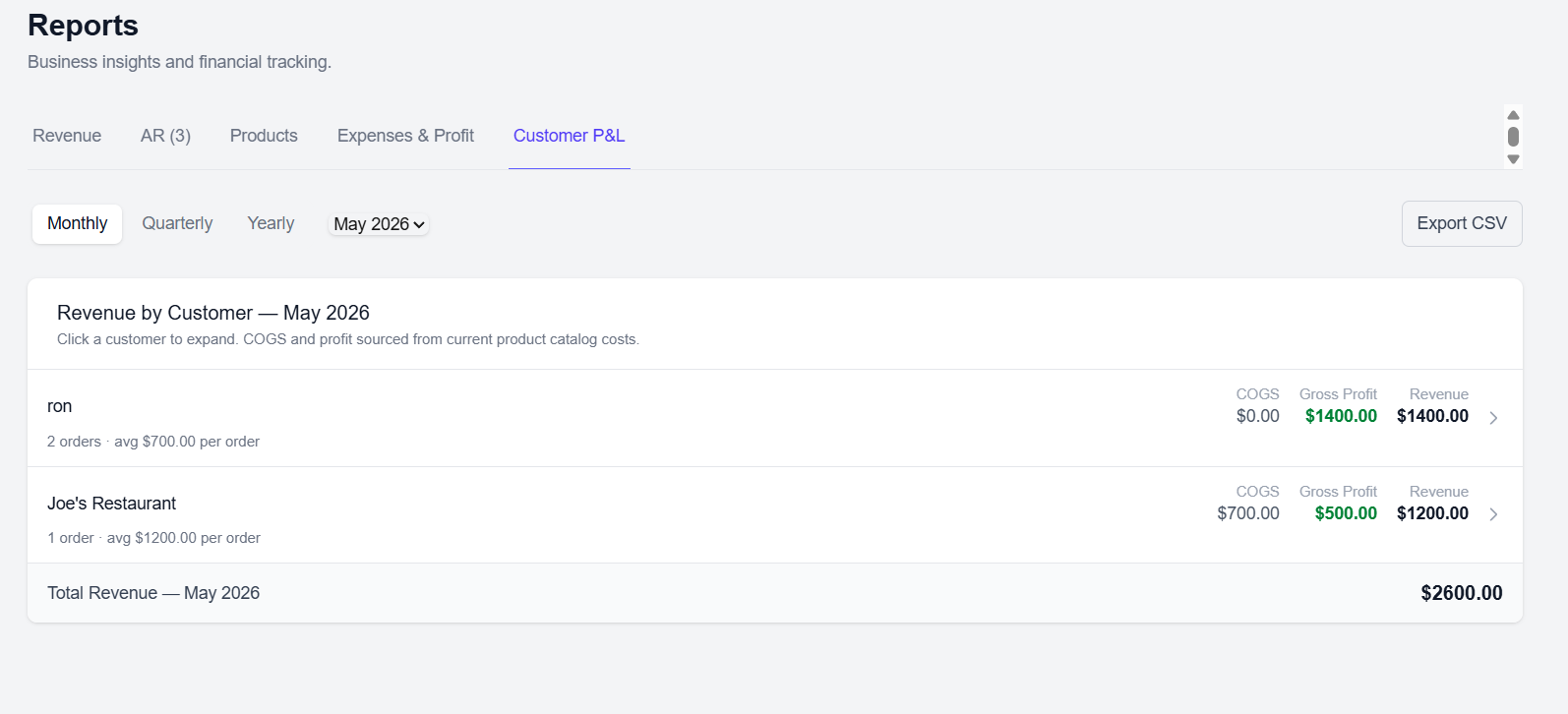
Customer P&L
View monthly profit and loss by individual customer, or switch to a quarterly or yearly view to see longer-term account performance.
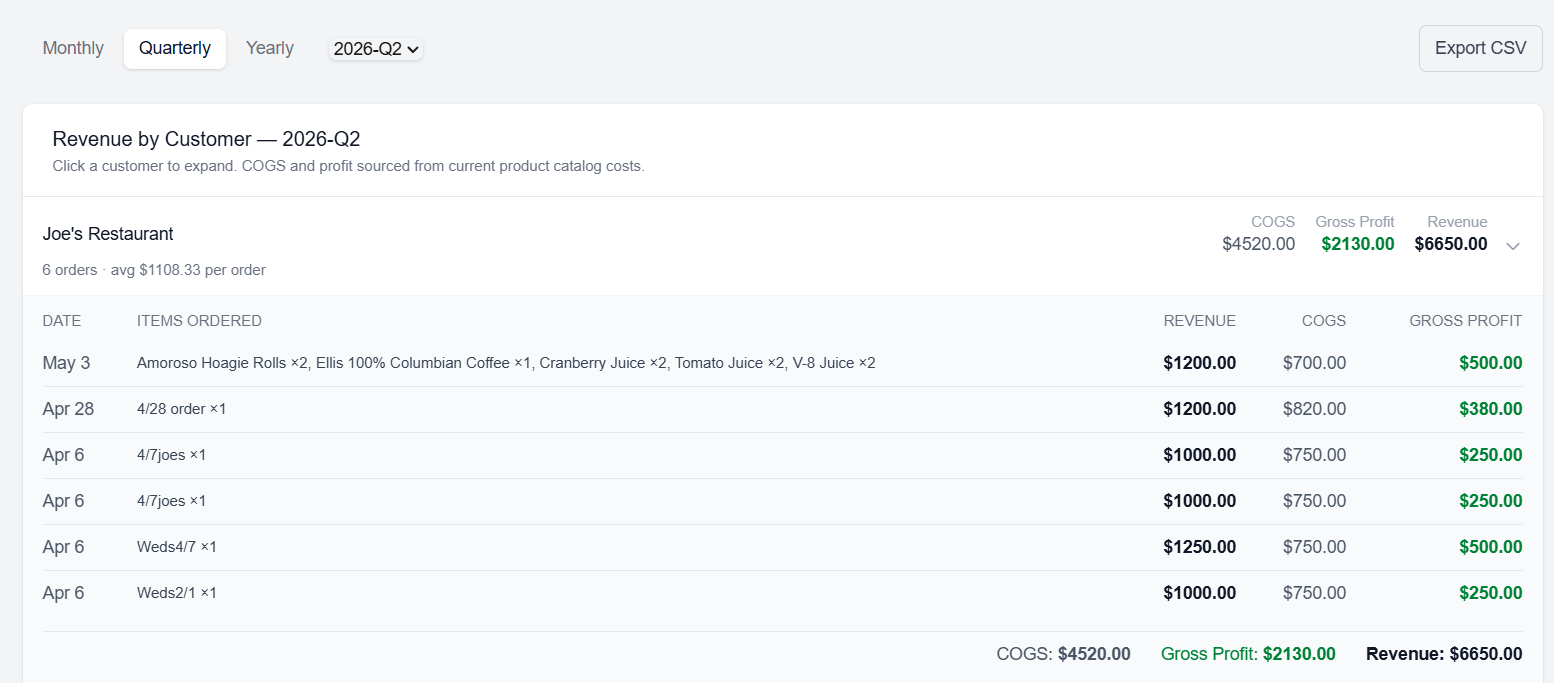
Drill down into all orders for a customer by month, quarter, or year.
Customer Side
When a customer clicks their order link, this is what they see — no login or account required.
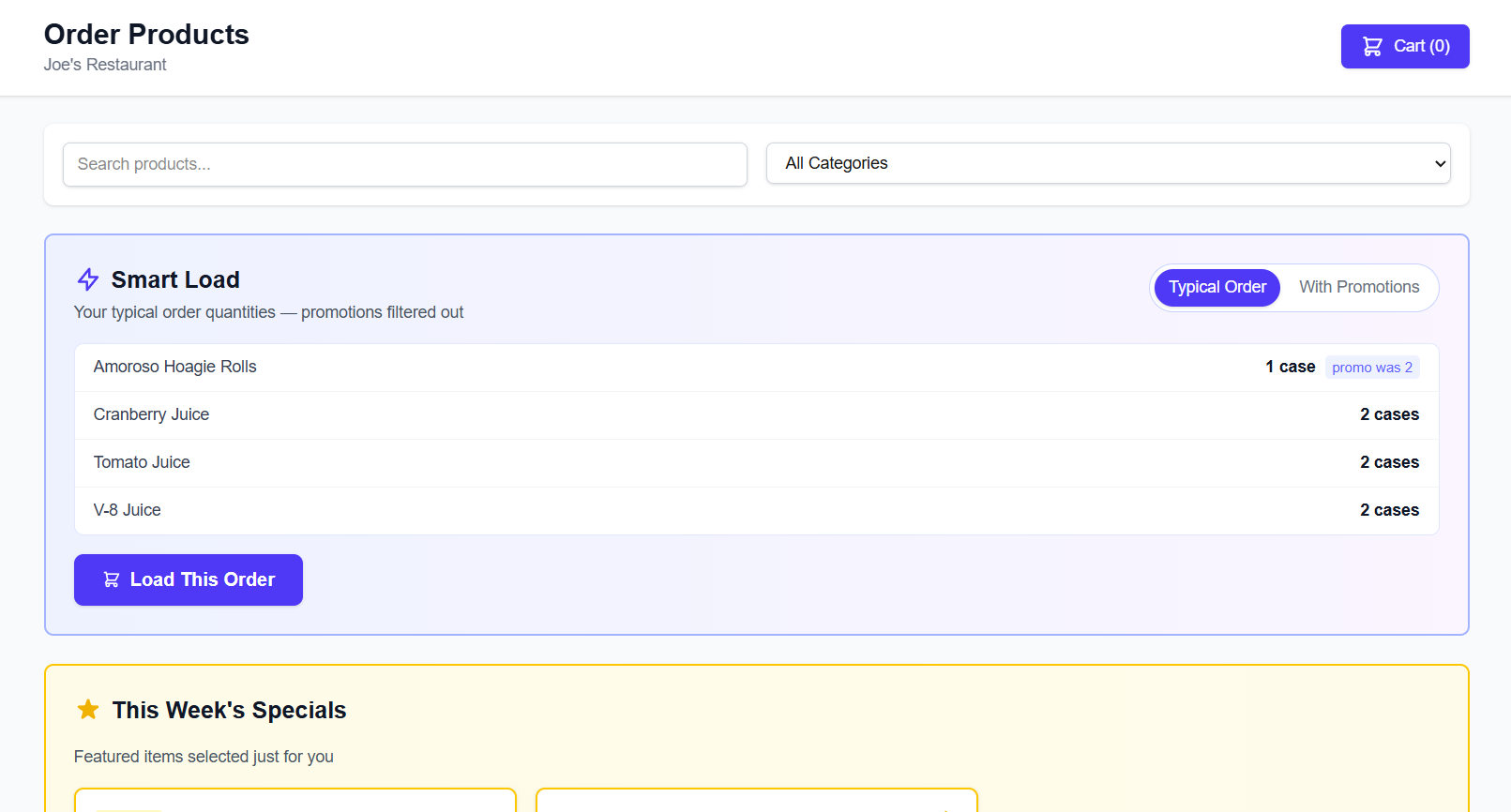
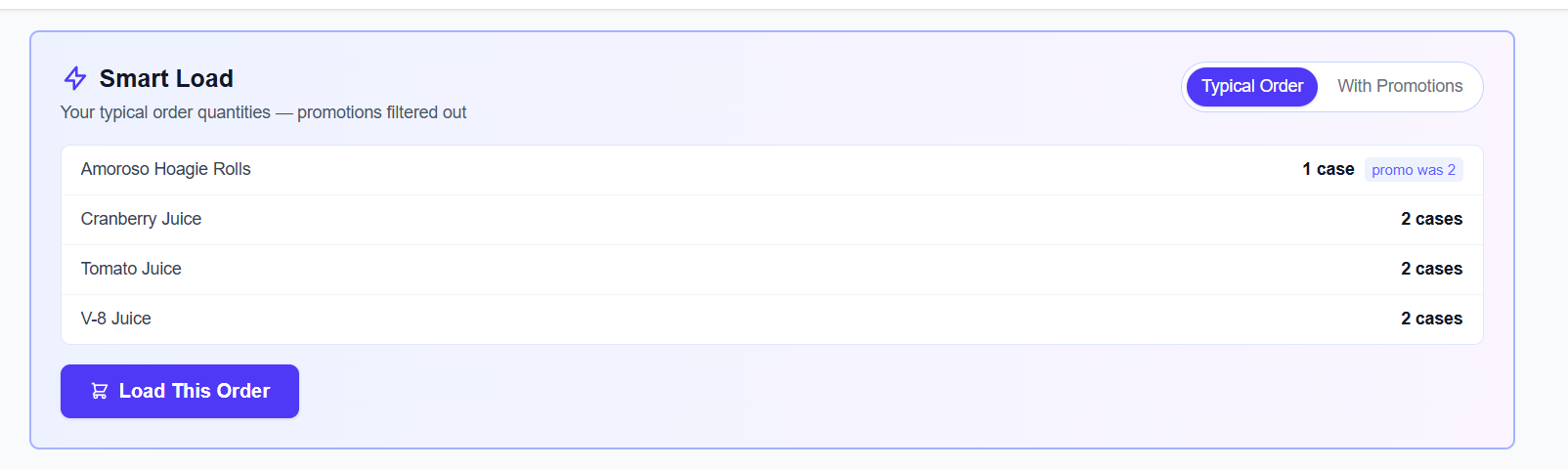
They can choose Smart Load to instantly re-order the same items from their last visit, with or without this week's promotions included.
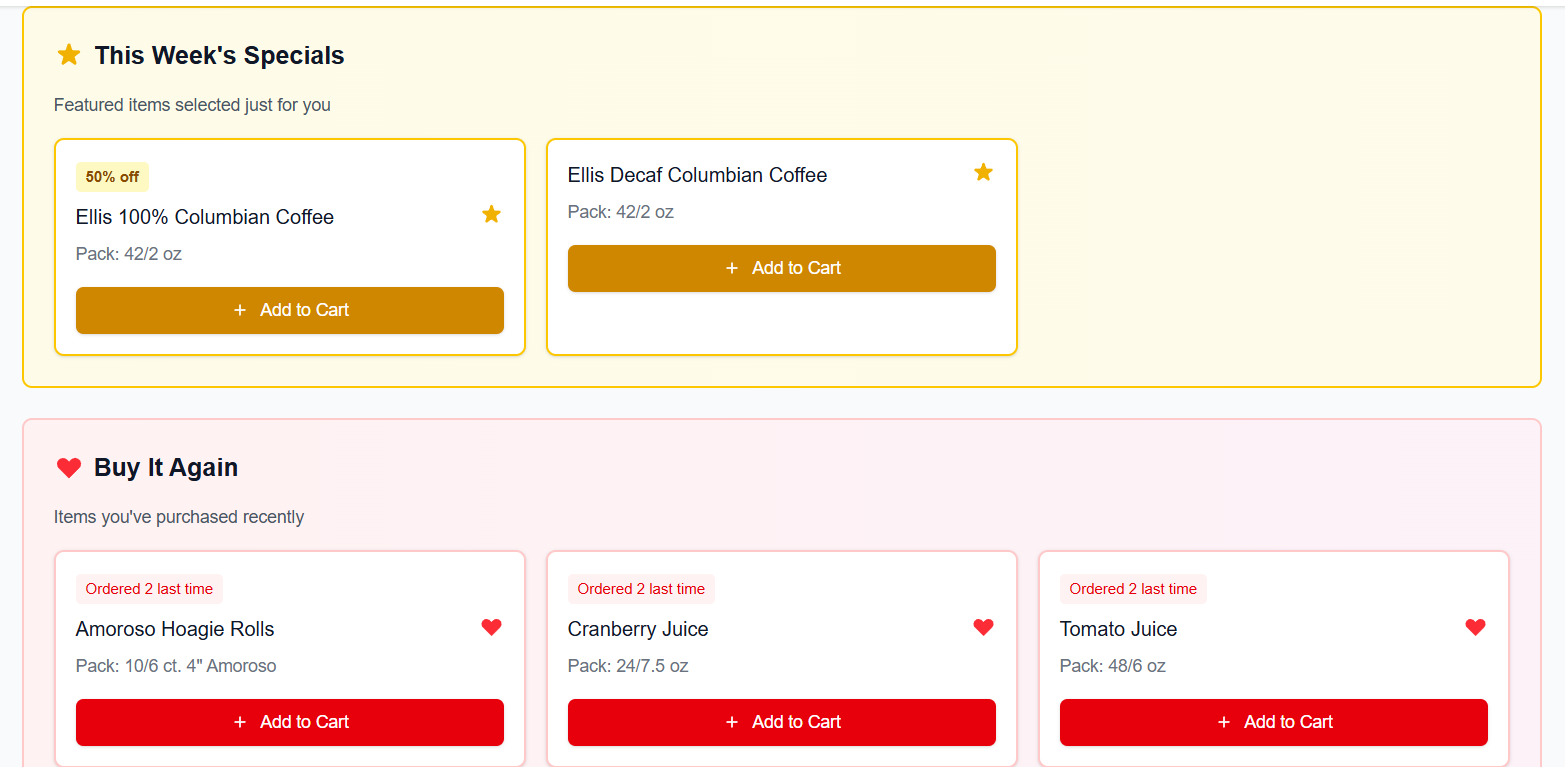
Customers can easily see this week's specials, or tap "Buy Again" on any frequently ordered item.
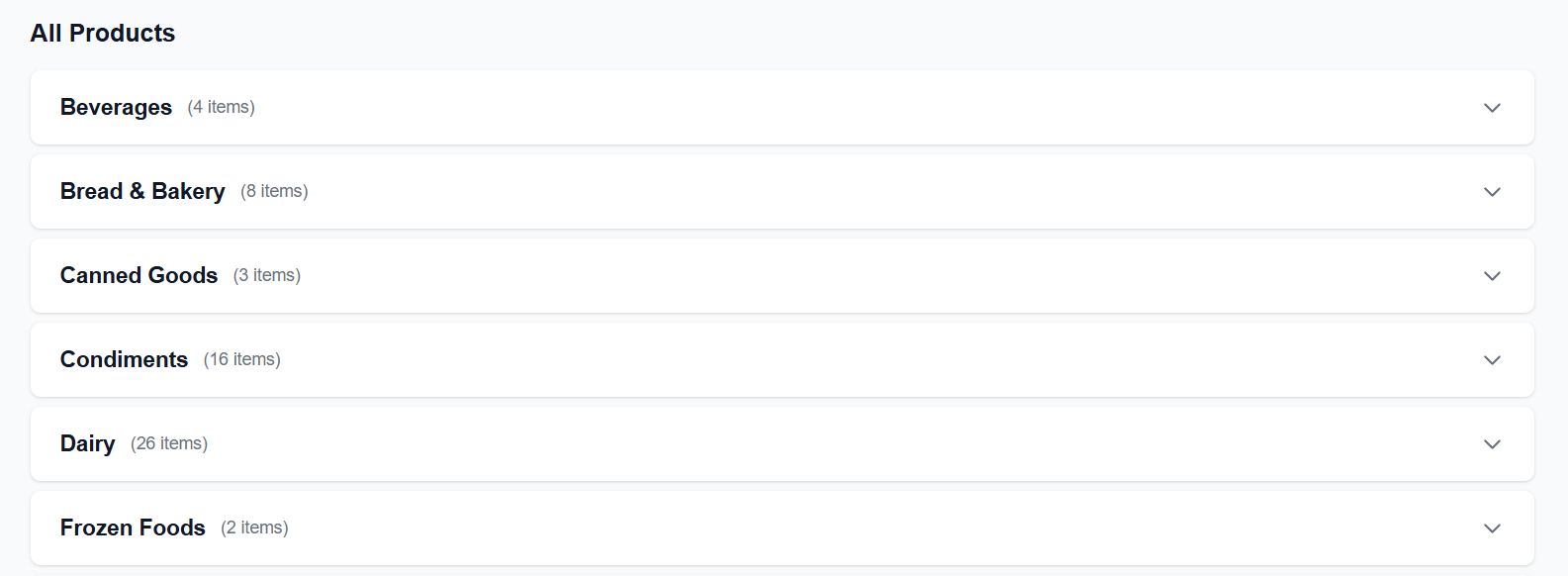
They can also browse the full product catalog to add new items — products are categorized automatically, making it easy to find what they need.
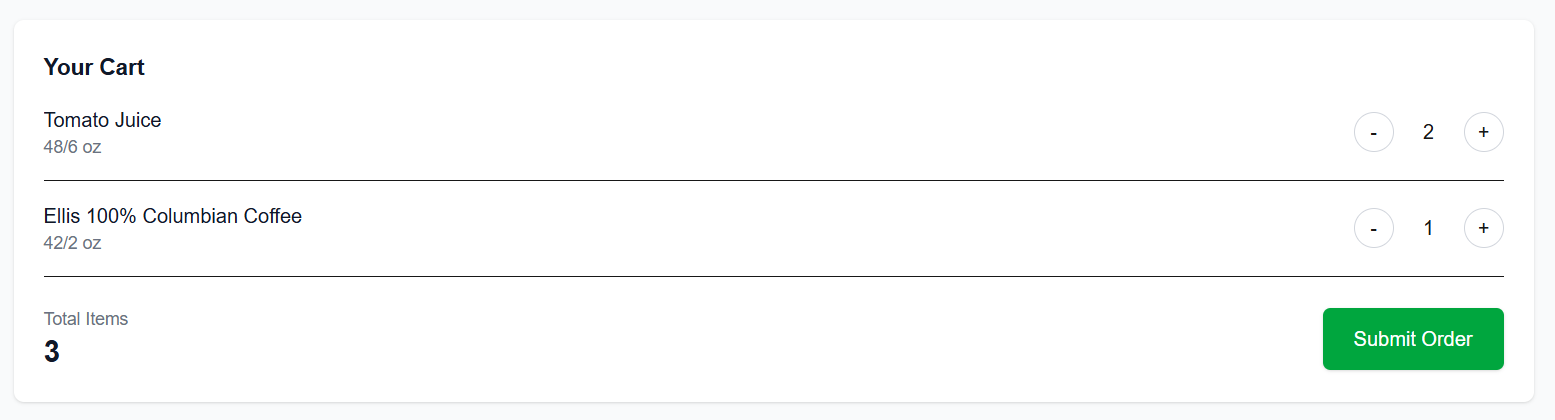
Add items to cart and check out in seconds.
Ready to run your route smarter?
Start your free 14-day trial — no credit card required.
Get Started Free